BMW i3 Benchmarking — Part 1
1. First Things First
Since I got feedback about not adding references in my LinkedIn comments, here are the references (and while you're in that LinkedIn post, leave a like if you haven't already):
- All the data is from this publicly available paper, which in turn takes info from ORNL. So if you have interest in a deep dive, go ahead.
- This and this as well.
2. What's Happening Here
In this post, we'll try and do some Emag simulations of the BMW i3 motor in MotorDesignSoftware and compare its results with the results given in the paper and the actual motor. This post will also have some tutorial of how to simulate a motor like this in MotorDesignSoftware. I might also upload the software files as well as other geometries in it (if I feel like it).
If this post has "Part 1" written on it, the next part will try to optimize the BMW i3 motor via the new Optimizer of MotorDesignSoftware. Let's start.
3. Available Data
I'll make a table for all available data instead of writing a paragraph for each. Here we go.
Weight
| Parameter | Value | Unit |
|---|---|---|
| Overall motor assembly mass | 42 | kg |
| Outer housing mass | 6.9 | kg |
| Stator mass | 20.8 | kg |
| Rotor mass | 14.2 | kg |
Geometry & Winding
| Parameter | Value | Unit |
|---|---|---|
| Stator OD | 242.1 | mm |
| Stator ID | 180 | mm |
| Rotor OD | 178.6 | mm |
| Rotor ID | 130.3 | mm |
| Shaft diameter | 60 | mm |
| Stack length | 132.3 | mm |
| Tooth width | 5 | mm |
| Slot opening | 1.7 | mm |
| Slot depth | 22 | mm |
| No. of slots | 72 | |
| No. of poles | 12 | |
| Turns per coil | 9 | |
| No. of wires | 12 | |
| Wire size | 21 | AWG |
| Fill factor | 54.43 | % |
| Parallel paths | 6 | |
| Winding layer | 1 |
Material
| Parameter | Value / links |
|---|---|
| Stator core material | M-19 0.3556mm |
| Rotor core material | M-19 0.3556mm |
| Magnet material | N38UH |
| Winding | Copper (Why not) |
4. Making DXF
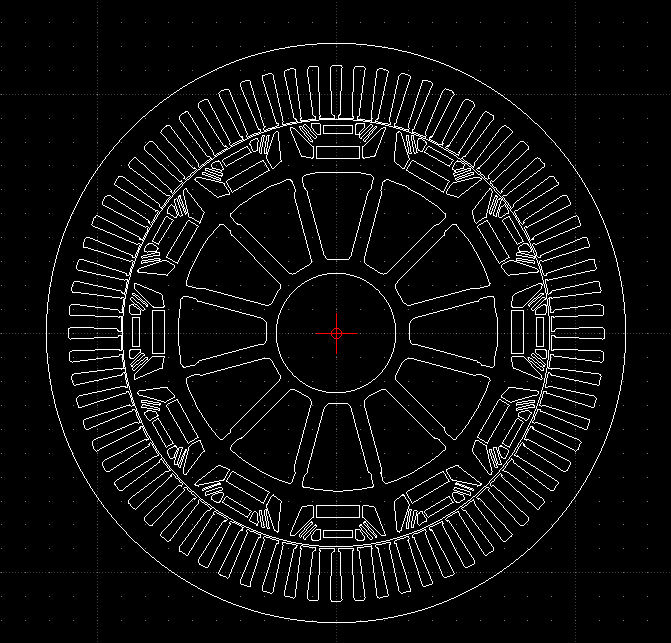
Since the BMW can't make a simple motor from templates, we would have to import geometry via the .dxf import wizard. For that we will need drawings for stator and rotor, duh. I have made the stator and rotor drawings in LibreCAD (thank me later).
5. Opening New File
This is kind of redundant, but we cannot simulate the motor without creating the file for it. So please open the software and create a new project folder; after that, create a new .mds file in that folder. If you still don't understand, here is a picture for you.
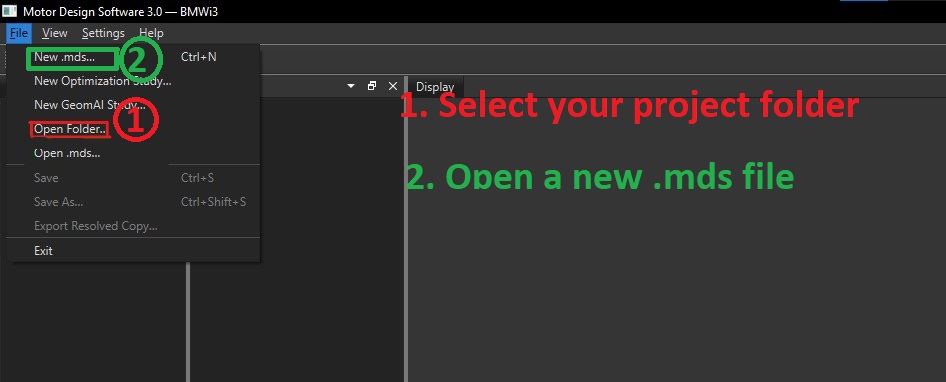
Once that is done, select Motor Family as PMSM, Inner / Outer Rotor as Inner Rotor, and Motor Type as V IPM; after that enter the friction and windage loss (if needed), and then move on to the materials section.
6. Adding Material
Since we are going to use custom material, we should add those material details in the software as well. This section has details on how to enter the material details in MotorDesignSoftware.
6.1 Stator and Rotor Laminations
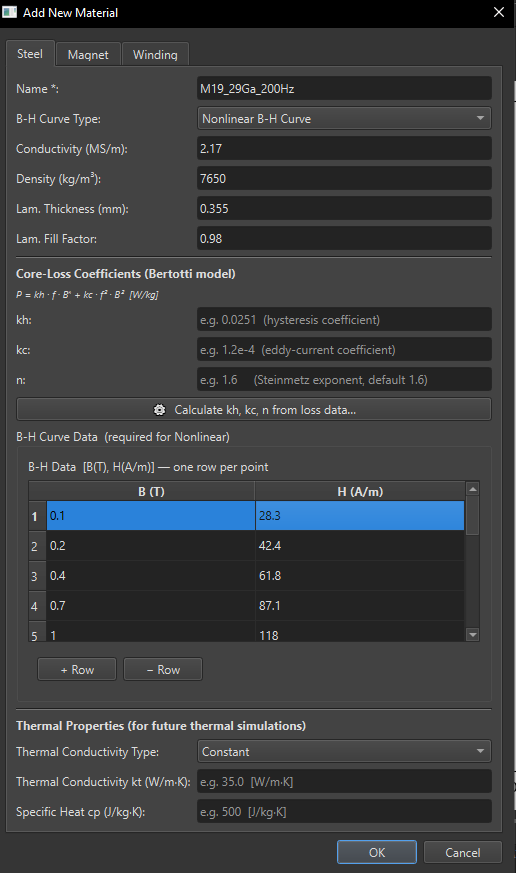
For adding custom material, click on the Add Material button in the material section. A material wizard should appear. Add the material name in the Name field. Since we have a B-H curve available, we will select Nonlinear B-H Curve, and enter the Conductivity, Density, Lamination thickness and stacking factor in the respective sections.
6.1.1 B-H Curve
After that is done, enter the B-H curve points from the material graphs.
6.1.2 Loss Curve
Once you have entered the B-H curve, to calculate kh, kc and n, click on the Calculate kh, kc, n from loss data... button. Now, the loss coefficients can be calculated by two methods: just entering 2 loss and frequency points (more inaccurate but pleasant), or by entering the complete loss curve at two frequencies (less inaccurate but tedious). I will grind my teeth and go with the tedious one. Here you have to enter the loss value in the table as shown here.
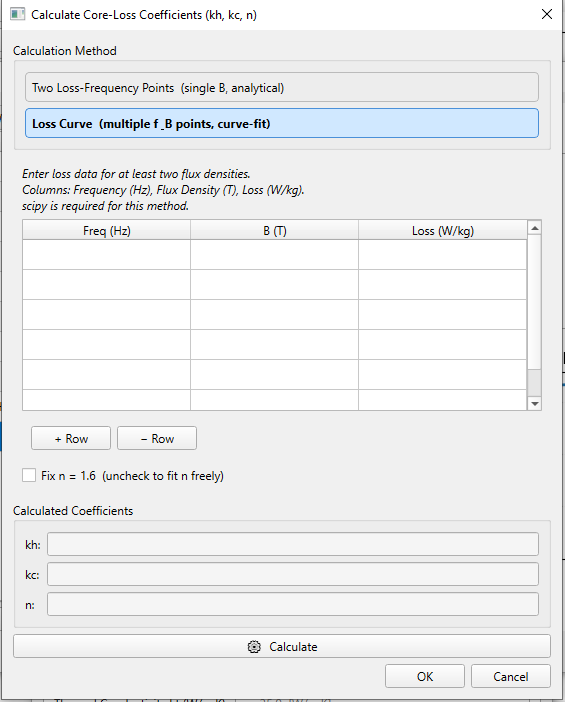
Luckily, the material datasheet that I have has numbers written for the B-H curve, otherwise we would have to use plotdigitizer for the B-H plot as well as the loss curve. Once you have entered the B-H curve and loss curve, enter the thermal conductivity and specific heat. These parameters would be used for the thermal solver which will come later (some day).
6.2 Magnet
Similar to steel, we will be using a B-H curve in magnets as well. The procedure is similar to steel, so I won't repeat it again and save some time.
7. Geometry Setup
Once you have completed adding all the material you require, go on to the geometry section and click on the Import Geometry from DXF... button; the .dxf import wizard will appear.
7.1 Import and Align Geometry
Importing geometry is simple: click on the geometry parameter that you want to import and then select the .dxf that you want to import (if the complete motor geometry is together, click on any one, we will assign it later).
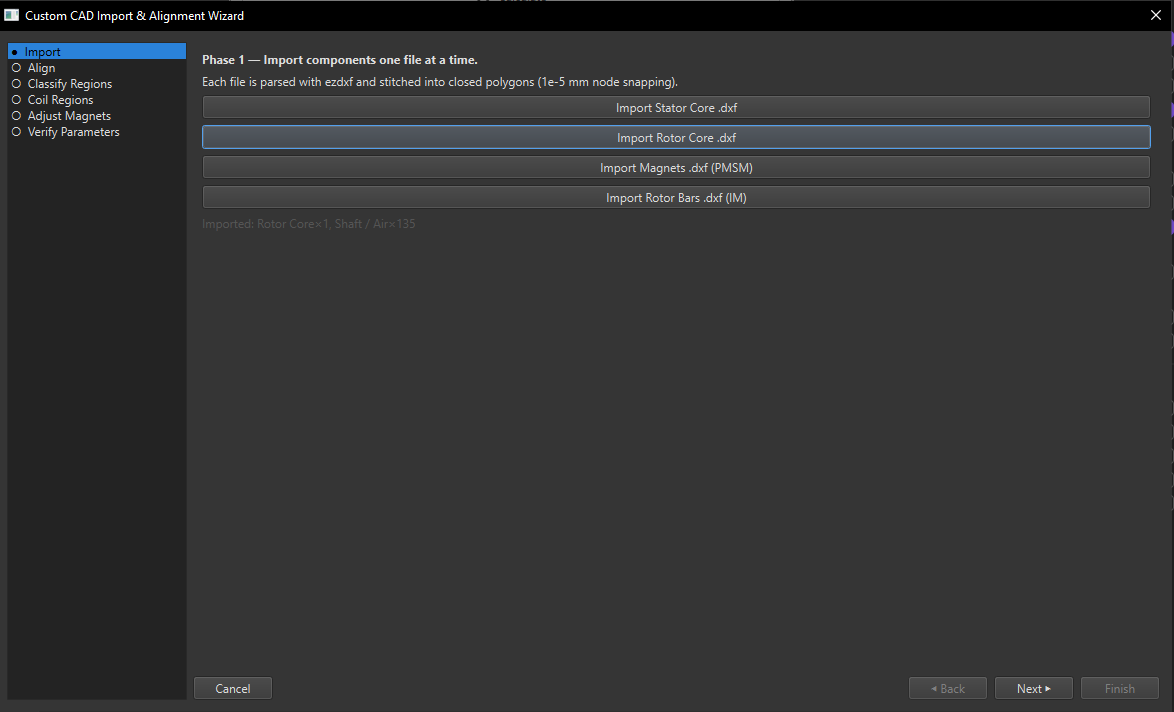
Once the geometry is imported, we need to rotate the stator and rotor such that the North pole and stator slot center both face the +X direction. For it, go to the Align and adjust the angle.
7.2 Assigning Material
After aligning, assign material for each region (keep the winding region as unassigned).
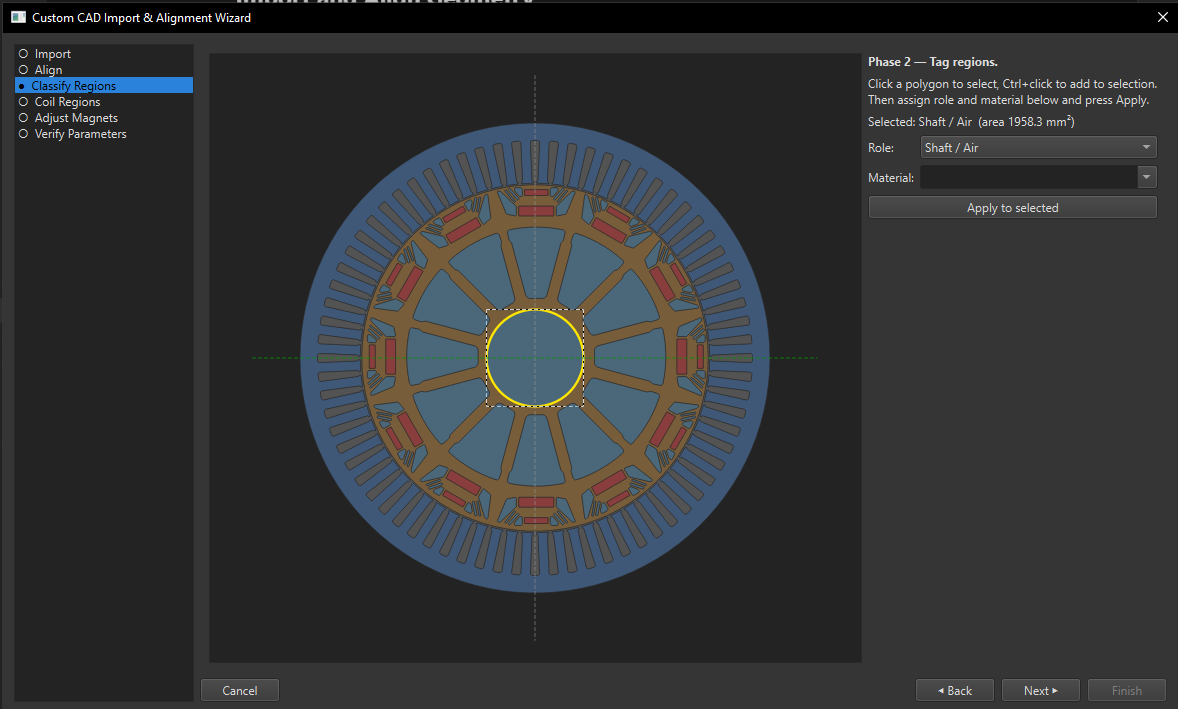
7.3 Coil Region
Once you have assigned material to each and every area, go to Coil Region. Here, by default the complete coil region will be selected, but we just need to assign for one slot, so select the region and click on Untag selected. Then click on Start drawing (generic / PMSM) button, draw the area where the coil will sit (just for one slot), and then click on finish polygon. If everything is done correctly, it should look something like this.
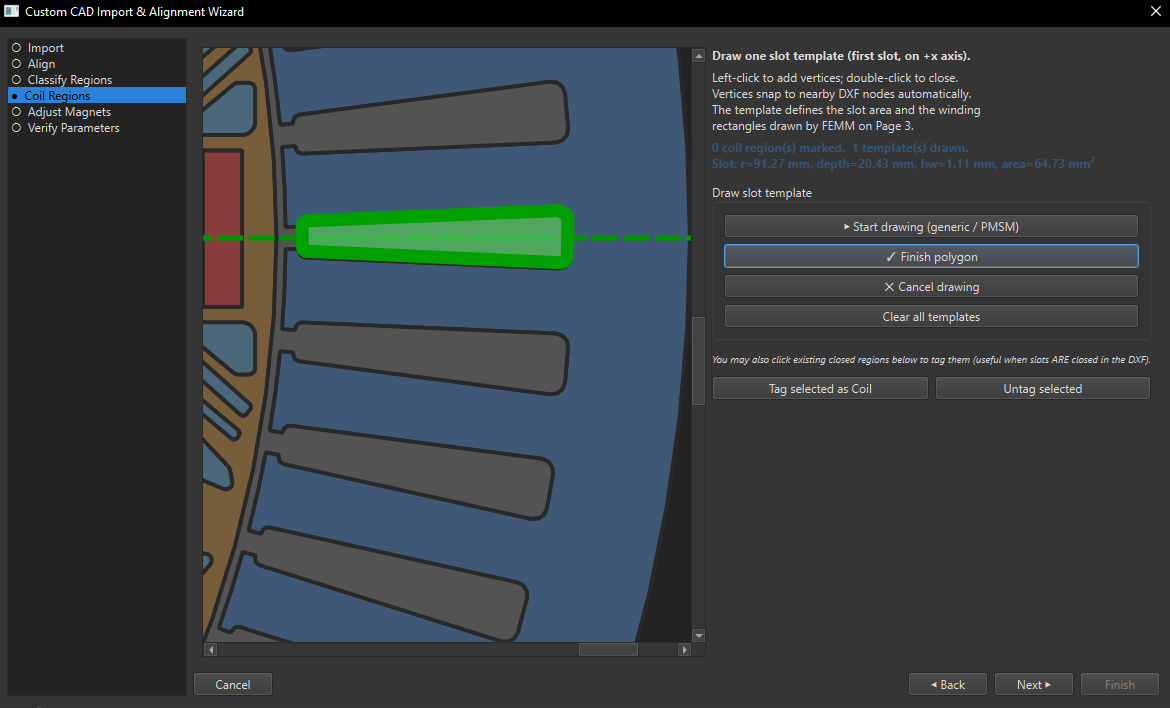
7.4 Direction of Magnetization
After assigning the coil region, move on to the Adjust Magnets section. Here you will have to assign the magnetization direction for each magnet. The arrow points towards North pole, so adjust accordingly. Also, the pole pairs in the right section may be wrong by default, so correct it.
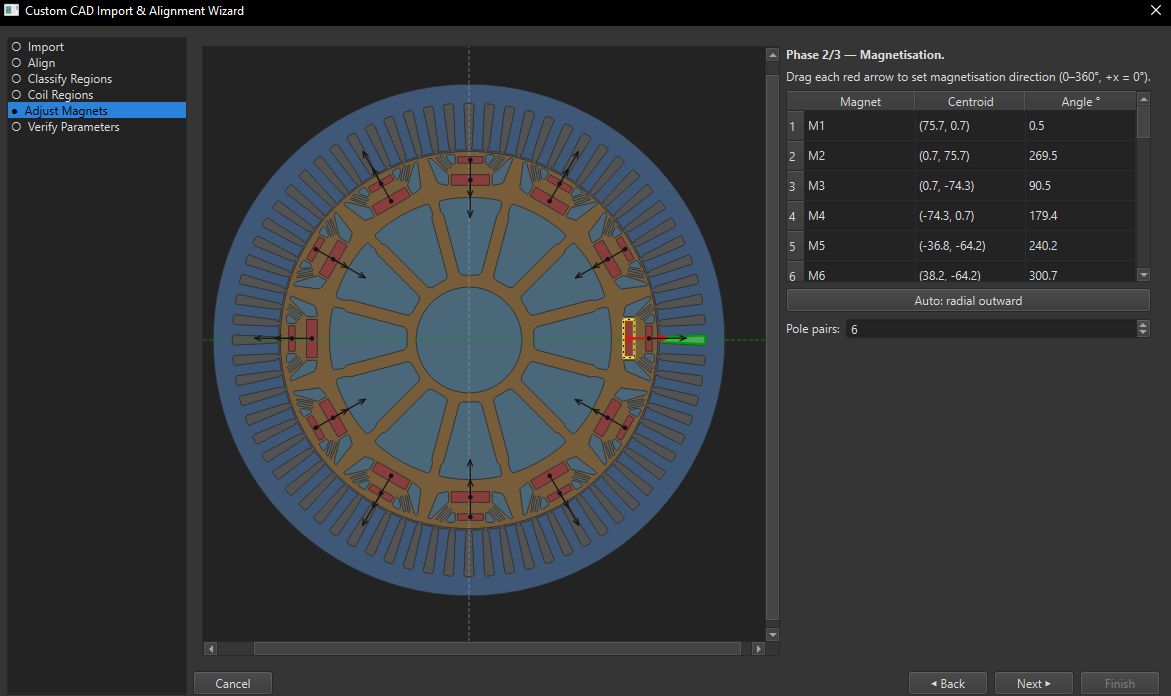
7.5 Verify Parameters
Once direction of magnetization is done, click on Verify parameters, and fill up all the values correctly and click on Finish. If everything is done correctly, depending on the complexity of the geometry, it will take some time to make the geometry in software and it should look something like this.
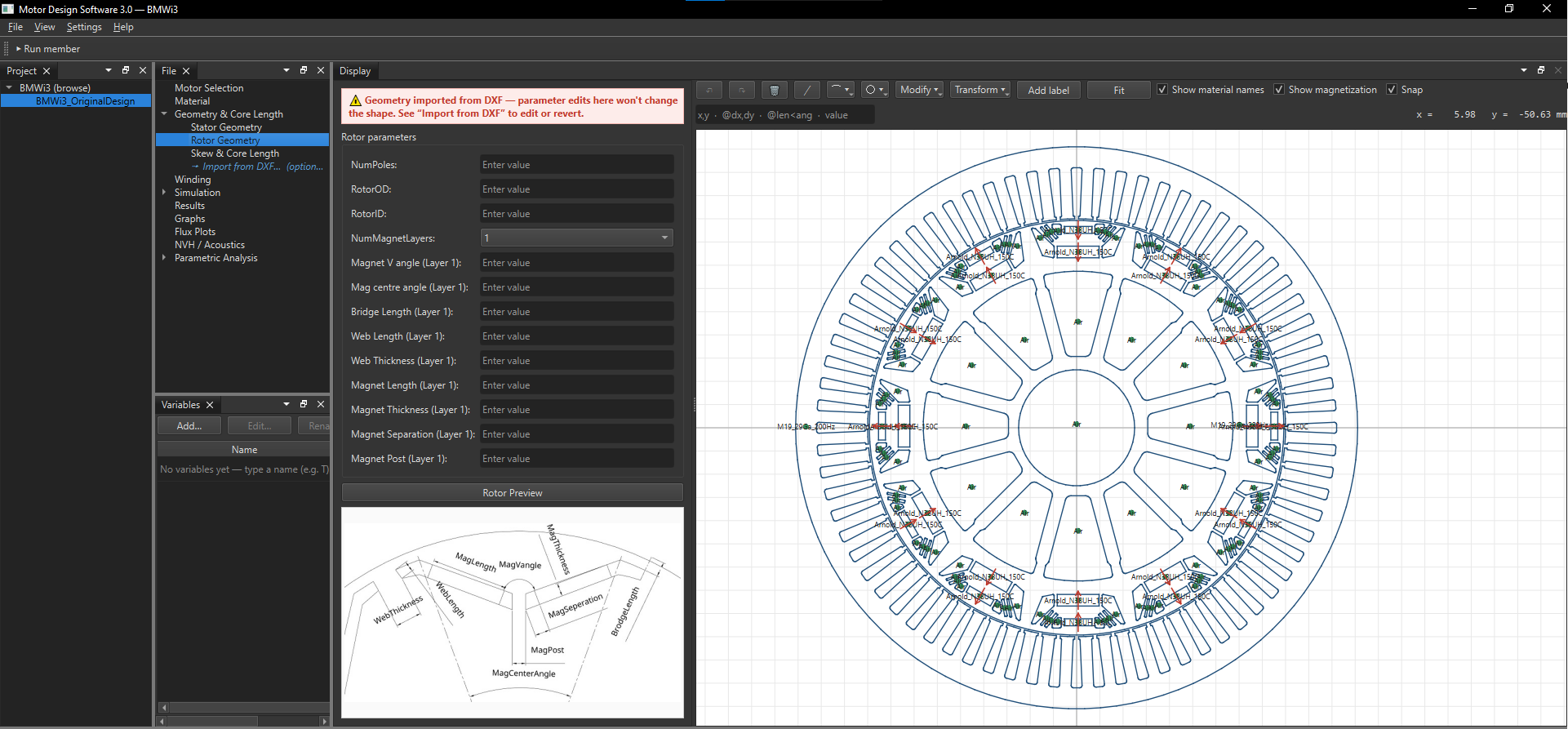
8. Winding
Okay, so you successfully imported the geometry, Good! Now, on to the next part which is winding. This part is also simple, just fill up the details and click on Preview Winding, it should look something like below.
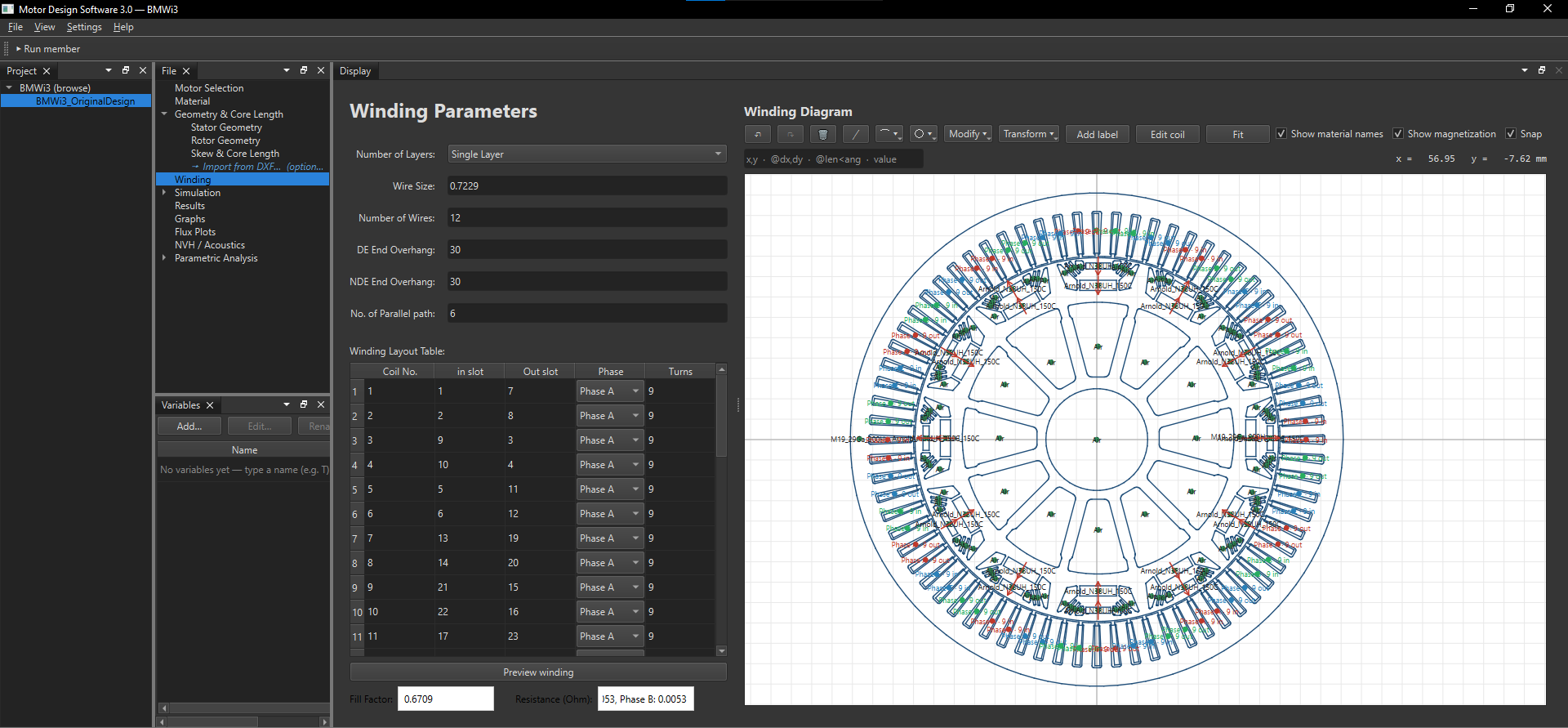
If you look closely, you will be able to see the resistance and fill factor. Of course the fill factor calculated by the software is wrong because the area assigned for the coil was not proper; you can just type the correct fill factor there (it wouldn't matter for simulations, but you can if you want).
9. Mesh and Simulation Setup
9.1 Mesh
Once you have made the winding, you can change the mesh. Since the geometry is nasty, you would have to reduce the mesh size. I won't add an image of meshed geometry because I used a very coarse mesh for speed in this simulation. However, in Part 2 which would be dedicated to discuss the results and compare it with the actual motor, I will do it with a good mesh density (and make my laptop sound like a jet engine for hours).
9.2 Simulation
This one is pretty straightforward: just tick whatever you want to simulate and leave the ones you don't want alone, as simple as that. The below screenshot shows the image where I have just simulated BackEMF, because it's been a long blog.
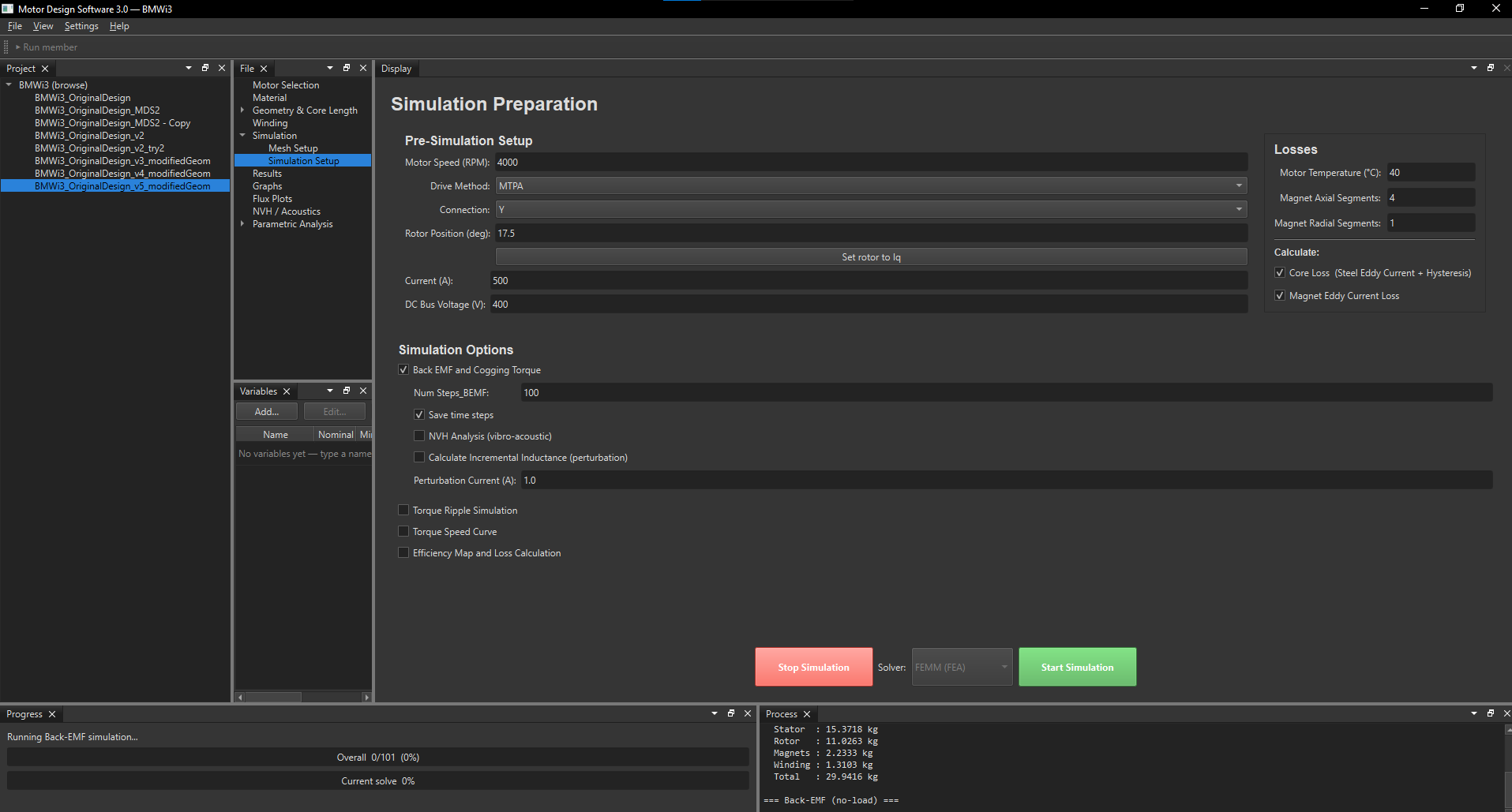
10. Results (Not Really Results)
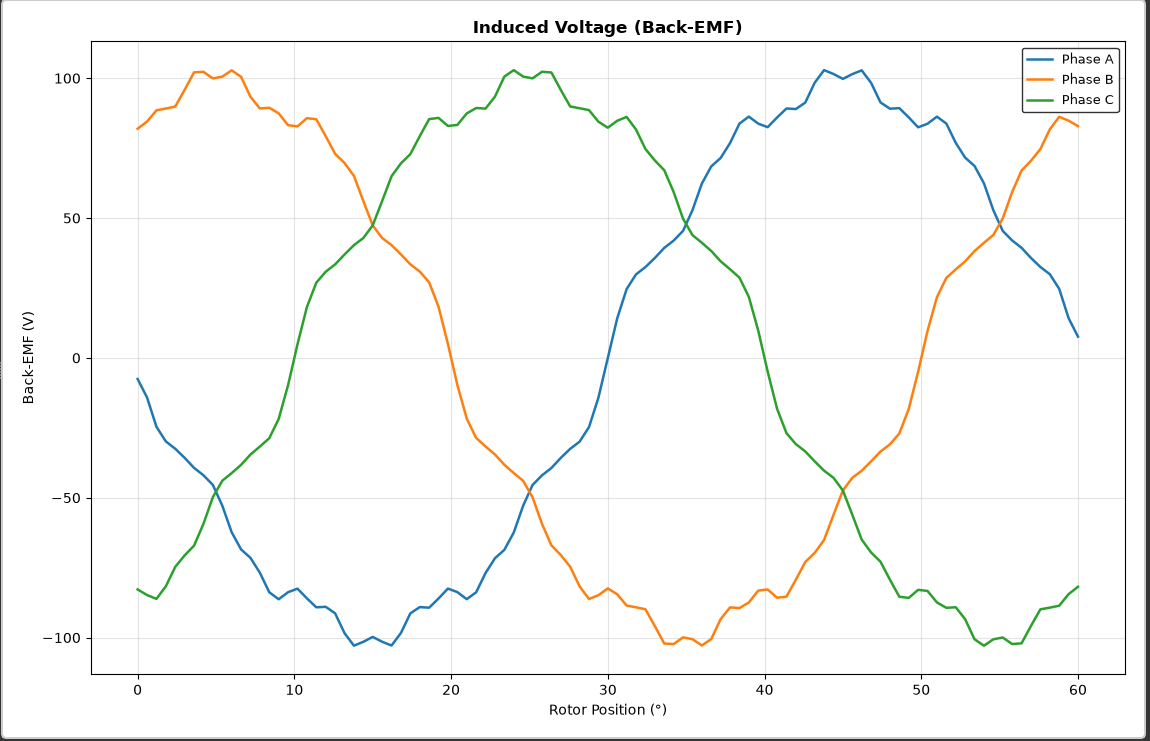
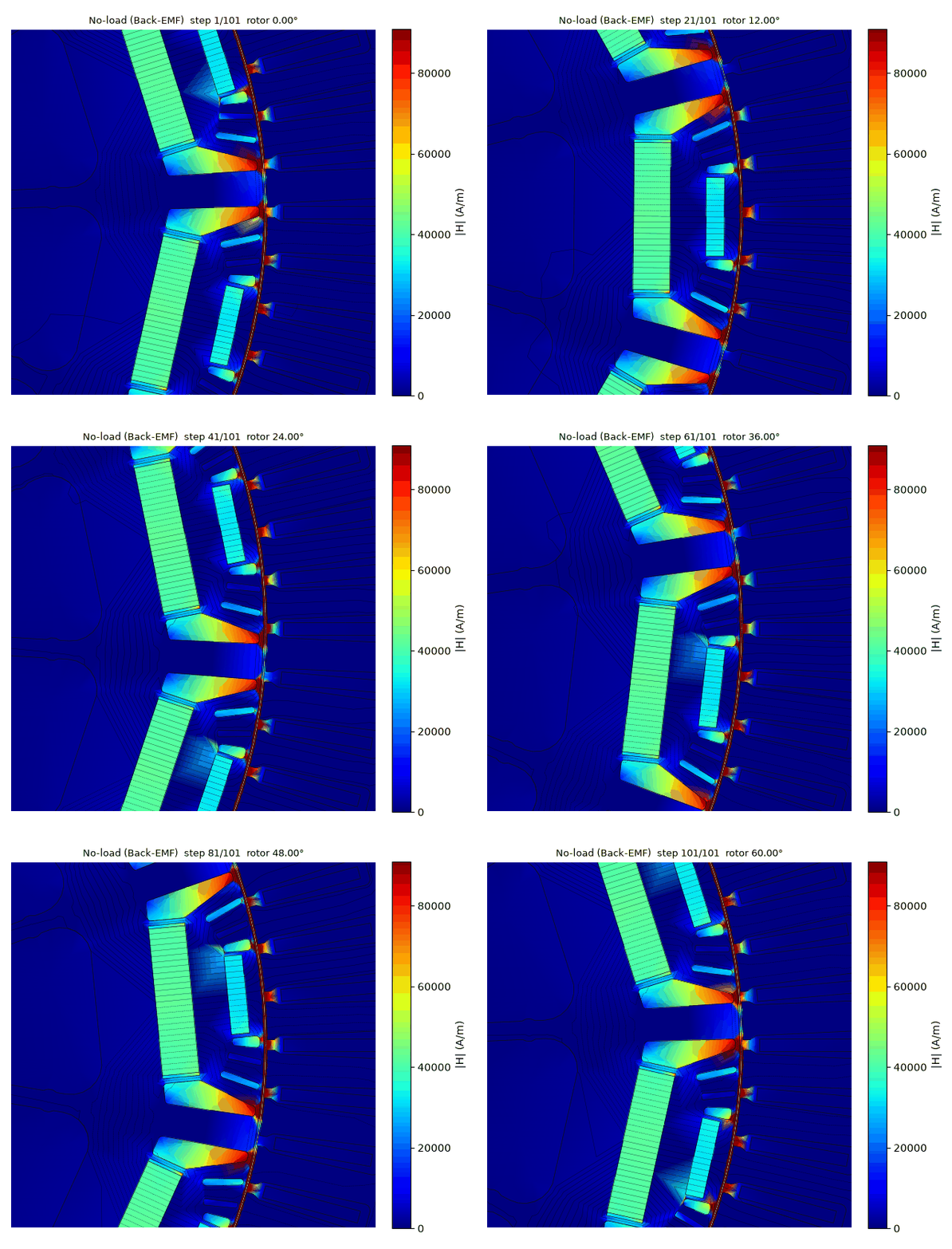
Since just a BackEMF simulation was done, we just have back EMF results (which are incorrect because I did not have the skew data at the time of writing this) and some flux plots. Part 2 will have detailed (corrected) results and other stuff. And in Part 3, we will do some mods to the motor and try to optimize the motor if possible.
I hope you survived this long non-informative blog without getting distracted by 16 links in the blog (now 17 if you are keeping count), and I hope Part 2 and 3 will be much better and more enjoyable. Until then, please enjoy this GIF and as usual, mark it as "Funny" on LinkedIn.
About the Simulation
The simulations in this blog were done with an unreleased version of MotorDesignSoftware. If you are interested you can check it out (just get the current version and I will inform you when the new version is available, it would be a free upgrade).
← Back to all articles